
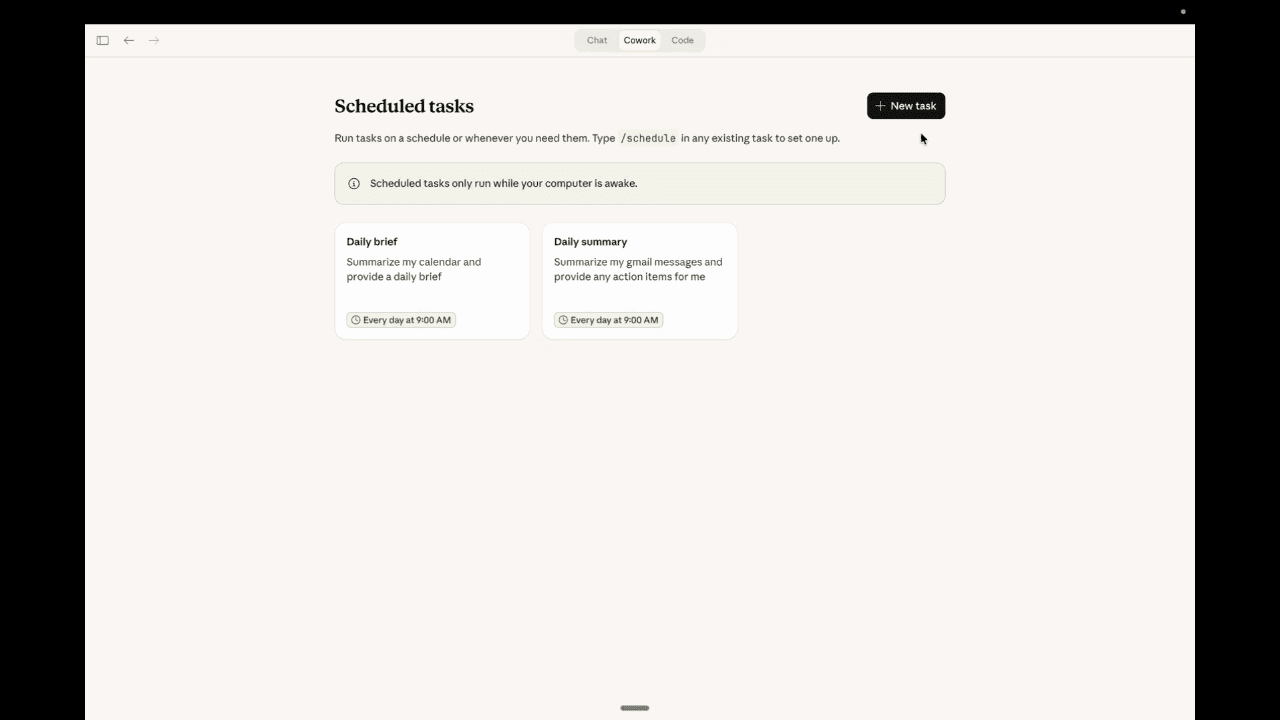
Anthropic announced something on Monday that I think a lot of people are sleeping on. At their “Briefing: Enterprise Agents” virtual event on February 24, they rolled out scheduled tasks for Claude Cowork — plus 13 new enterprise plugins and a redesigned Customize tab. The plugins got the headlines, but the scheduled tasks feature is the one that changes your daily workflow.
I set up my first three scheduled tasks yesterday and I'm already wondering how I got by without them. Here's the practical guide.
What Anthropic Just Announced
If you haven't been following, Cowork is Claude's agentic workspace inside the Claude Desktop app. Think of it as the non-coding sibling of Claude Code — built for knowledge work like research, reports, data analysis, and document generation. You describe a task in plain English, and Claude breaks it into steps, runs them, and delivers finished output to your file system.
Until this week, Cowork tasks were one-shot. You describe what you need, Claude does it, you get the output. Useful, but you had to kick off every task manually.
Now you can tell Claude: “Do this every morning at 8am.” Or every Friday. Or every hour. And it just does it.
As one commenter on Claude's LinkedIn announcement put it: “The difference between a tool and an agent is whether it waits for you or works ahead of you.” That nails it.
What Are Scheduled Tasks?
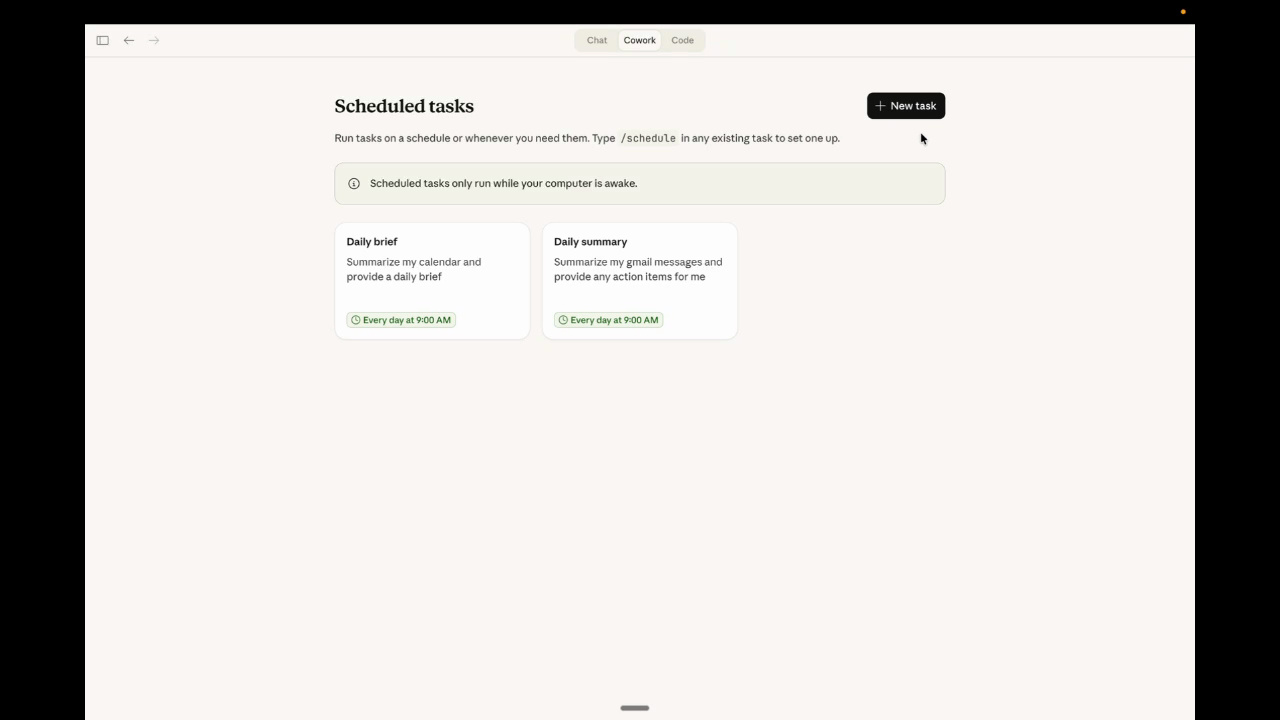
Scheduled tasks let you describe a workflow once and have Claude execute it automatically on a recurring basis. Each run gets its own Cowork session with reviewable results, so you can always check what Claude did and verify the output before acting on it.
You pick a frequency when you create the task:
- Hourly — monitoring, rapid-cycle updates
- Daily — morning briefings, end-of-day summaries
- Weekly — team reports, metric compilations
- Weekdays only — business-hours automation
- Manual — on-demand, run it whenever you click the button
Scheduled tasks have access to everything a regular Cowork task does — your connected tools, installed plugins, skills, and local files. That's what makes this powerful. A scheduled task can pull data from Google Drive, summarize your Slack channels, format the results into a spreadsheet, and drop it on your desktop. All without you lifting a finger.
Why This Actually Matters for Your Business
We talk to businesses every week about AI agents and the most common reaction is: “Sounds great, but I don't have time to learn another tool.”
Scheduled tasks flip that objection. You invest 5 minutes describing the task once, and it runs forever. The ROI compounds every single day. Think about what your team does repetitively every week:
- Compiling data from multiple sources into a report
- Summarizing emails, Slack threads, or meeting notes
- Tracking competitor activity or industry news
- Generating status updates for leadership
- Preparing materials for recurring meetings
Each of those is a scheduled task waiting to happen. And unlike building a Zapier workflow or writing custom scripts, you just describe what you want in plain English.
How to Set Up a Scheduled Task
Two ways to create one. Both take under a minute.
Method 1: The /schedule Command
This is the fastest path if you're already working in Cowork:
- Open Cowork in Claude Desktop
- Start a new task (or open an existing one)
- Type
/schedulein the chat - Describe what you want the task to do and when
- Claude may ask clarifying questions — answer them with the multiple-choice responses or type your own
- Review the task name, schedule, and functionality Claude proposes
- Click “Schedule” to confirm
That's it. Your task shows up in the Scheduled sidebar and runs at the next scheduled time.
Method 2: From the Scheduled Tasks Page
If you want more control upfront:
- Click “Scheduled” in the left sidebar of Cowork
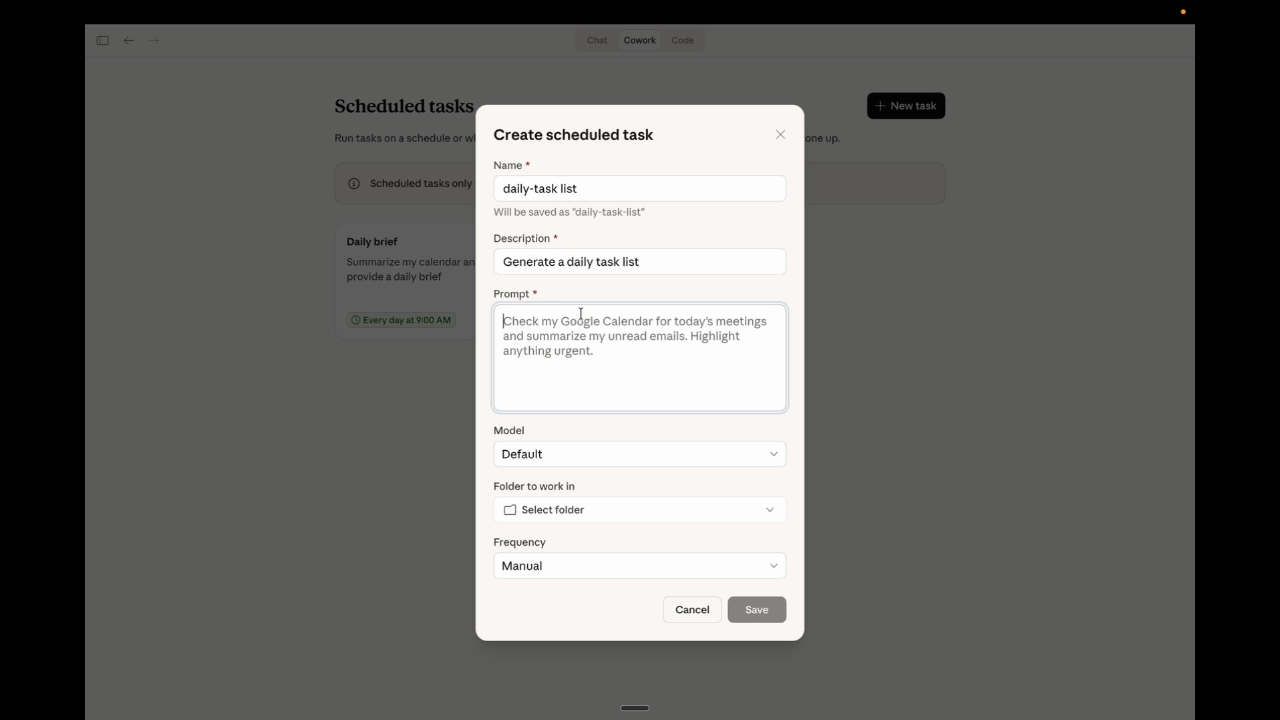
- Click “+ New task” in the upper right
- Fill in the details:
- Task name — something descriptive (“Monday Morning Briefing”)
- Task description — what this task does
- Prompt — the full instructions for Claude
- Frequency — hourly, daily, weekly, weekdays-only, or manual
- Model — optional, defaults to your plan's best
- Working folder — optional, where output files land
- Click “Save”
Pro tip: Write your prompts like you're briefing a sharp new hire. Be specific about what data to pull, how to format it, and where to save the result. The more concrete your prompt, the better the output every single run.
Once created, you can manage everything from the Scheduled page — view upcoming and past runs, edit instructions or cadence, pause and resume tasks, run them on demand, or delete them.
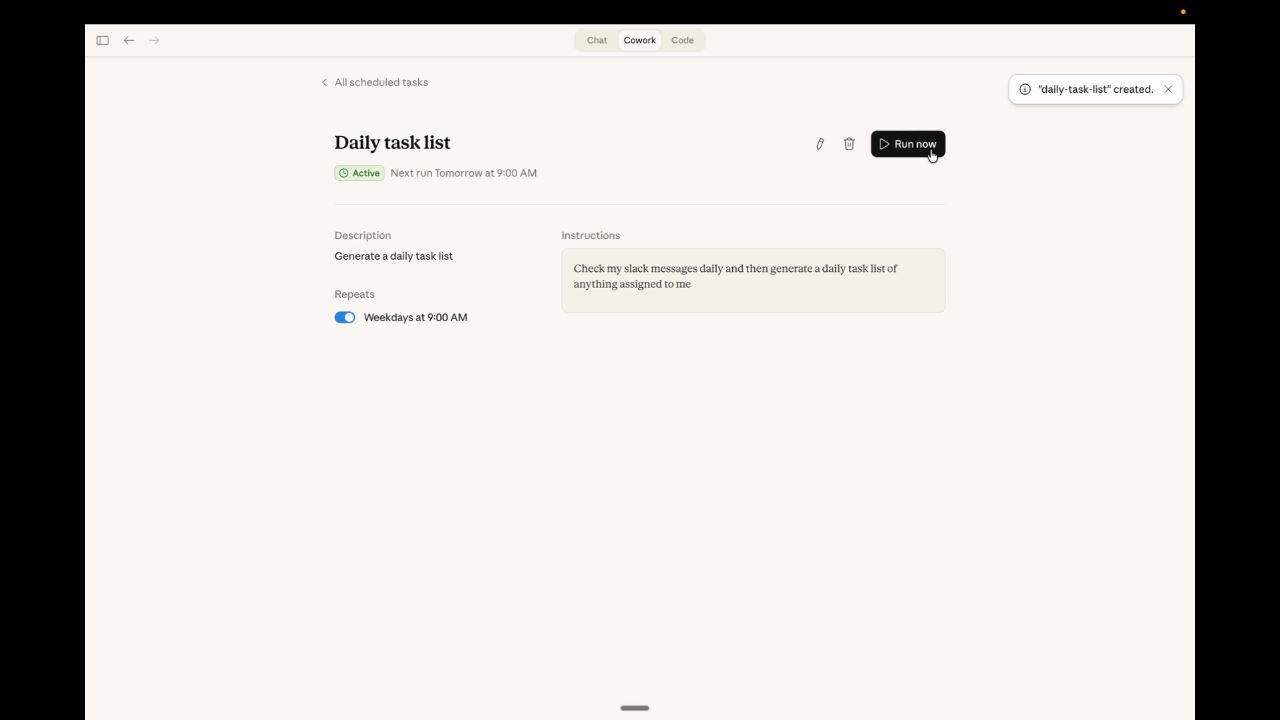
5 Scheduled Tasks Worth Setting Up Today
1. Daily Morning Briefing
Frequency: Weekdays at 8:00 AM
What it does: Summarizes overnight emails, Slack messages, and calendar events. Flags anything urgent. Gives you a 2-minute read before your first meeting.
This is the gateway. Once you open your laptop to a ready-made briefing, you won't go back to manually scanning three apps before your coffee kicks in.
2. Weekly Competitive Research
Frequency: Every Monday
What it does: Searches for competitor mentions, industry news, and market trends. Compiles a formatted summary with links you can actually click through.
Most businesses know they should track competitors consistently. Almost nobody actually does. A scheduled task fixes that. If you're working on your search visibility, knowing what competitors are publishing gives you an edge.
3. Friday Team Recap
Frequency: Every Friday at 3:00 PM
What it does: Pulls activity from project management tools and connected apps, summarizes what shipped this week, and generates a team update ready to paste into Slack or email.
4. Daily Lead Summary
Frequency: Daily
What it does: Reviews new incoming leads from your CRM or contact forms, scores them based on your criteria, and prepares a prioritized follow-up list.
If you run a business where fast customer response makes or breaks the deal, this one pays for itself in a week. No more leads sitting in an inbox overnight.
5. Content Performance Report
Frequency: Weekly
What it does: Pulls analytics data, identifies your top-performing content, and suggests topics for the next week.
The 13 New Enterprise Plugins
Scheduled tasks get a lot more powerful when paired with the 13 new plugins Anthropic shipped at the same event. These are live now and connect Cowork to the tools businesses actually use:
| Plugin | What It Connects |
|---|---|
| Google Drive | File access, document creation, search |
| Google Calendar | Event scheduling, availability, meeting prep |
| Gmail | Email search, summaries, draft generation |
| DocuSign | Contract management, signature workflows |
| Apollo | Lead research, contact enrichment |
| Clay | Data enrichment, lead scoring |
| Outreach | Sales engagement, sequence automation |
| SimilarWeb | Competitive intelligence, traffic analysis |
| MSCI | Financial data, ESG research |
| LegalZoom | Legal document generation, compliance |
| FactSet | Financial modeling, market research |
| WordPress | Content publishing, site management |
| Harvey | Legal research, case analysis |
The Google Workspace trio (Drive, Calendar, Gmail) is the big unlock for most businesses. Pair a daily scheduled task with Gmail access and you've got an AI that reads your email before you do and tells you what matters.
The sales stack — Apollo, Clay, Outreach — is worth watching if you do any outbound. Imagine a weekly scheduled task that enriches new leads, scores them, and stages the best ones in your outreach tool. Automatically. Every Monday morning.
Limitations You Should Know
This is still a research preview. Here are the constraints to understand before you build scheduled tasks into your critical workflows:
- Your computer must be on. Scheduled tasks only run while your machine is awake and Claude Desktop is open. If your laptop is asleep at 8 AM, the morning briefing doesn't fire. It will run automatically when you open the app, and you'll get a notification that it was delayed — but it's not truly “set and forget” yet.
- No memory between runs. Each task run starts fresh. Claude doesn't remember what the previous run found unless you structure your prompt to save and reference previous outputs in a file.
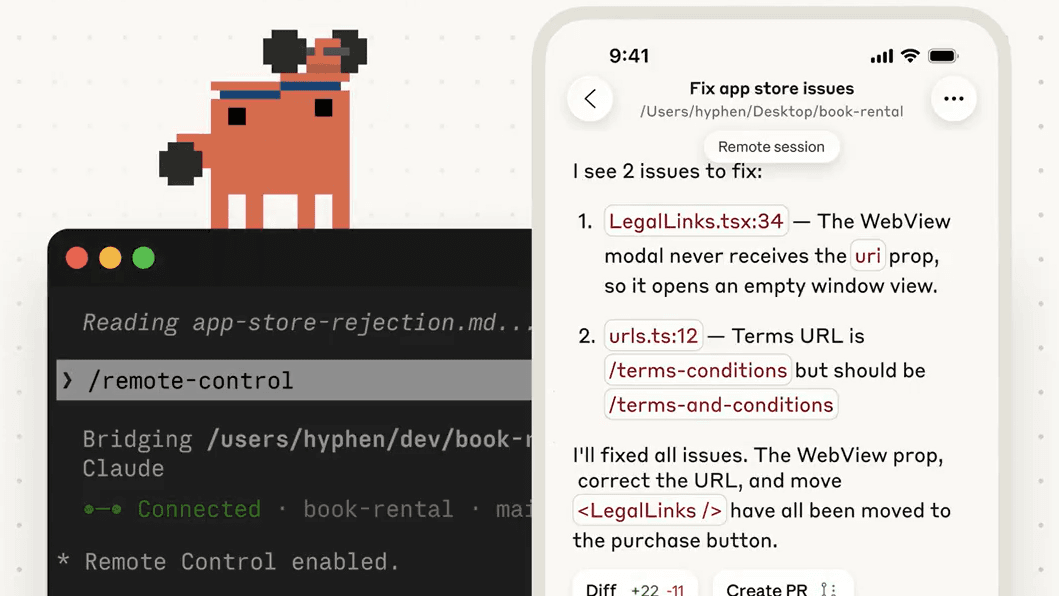
- Desktop only. No mobile support for Cowork yet. You can't review scheduled task results from your phone. (If you're a developer using Claude Code Remote Control, you know Anthropic is heading toward mobile access for everything — but Cowork isn't there yet.)
- No sharing. You can't share scheduled task configs with teammates. Everyone sets up their own.
The computer-must-be-awake constraint is the biggest one. For businesses that need guaranteed execution, a dedicated machine running Claude Desktop works. Not elegant, but effective. I expect Anthropic to move this to cloud execution eventually — they already did it with Claude Code on the web.
What This Means for AI-Powered Businesses
We run an AI chatbot on this website. It answers questions, qualifies leads, and books meetings 24/7. That's a reactive AI — it waits for someone to start a conversation.
Scheduled tasks are the next step: proactive AI. An agent that doesn't wait for you to ask. It researches, compiles, analyzes, and delivers on a schedule you set.
Put both together and you've got a business where AI handles the routine knowledge work (scheduled tasks) and the customer-facing interactions (chatbots). The reactive side catches incoming leads. The proactive side prepares your team to close them.
If you've been reading our AI agents guide or following the AI Change Framework series, this is exactly the kind of tool we've been talking about. The barrier to entry for real AI automation just dropped to $20/month and a plain-English description of what you need done.
Getting Started
Here's what I'd do this week:
- Download Claude Desktop if you haven't already — available on macOS and Windows
- Open Cowork and connect Google Workspace if you use it
- Create one scheduled task. Start with the daily morning briefing. Type
/scheduleand describe what you want to see every morning. - Review the results for a few days and refine the prompt
- Add a second task once you trust the first one
Don't try to automate everything at once. Start with one task that saves you 10 minutes a day. That's 50 minutes a week. Over a year, you get back more than 40 hours from a single prompt you wrote once.
The official Anthropic guide has the full documentation if you want to go deeper.
From Claude on LinkedIn
“Set tasks to run on a schedule. You set it up once — a morning brief, weekly spreadsheet updates, Friday team recaps.”
See the full announcement on LinkedIn →
Elevated AI Consulting
Sam Irizarry is the founder of Elevated AI Consulting, helping businesses grow through strategic marketing and AI-powered solutions. With 12+ years of experience, Sam specializes in local SEO, web design, AI integration, and marketing strategy.
Learn more about us →