

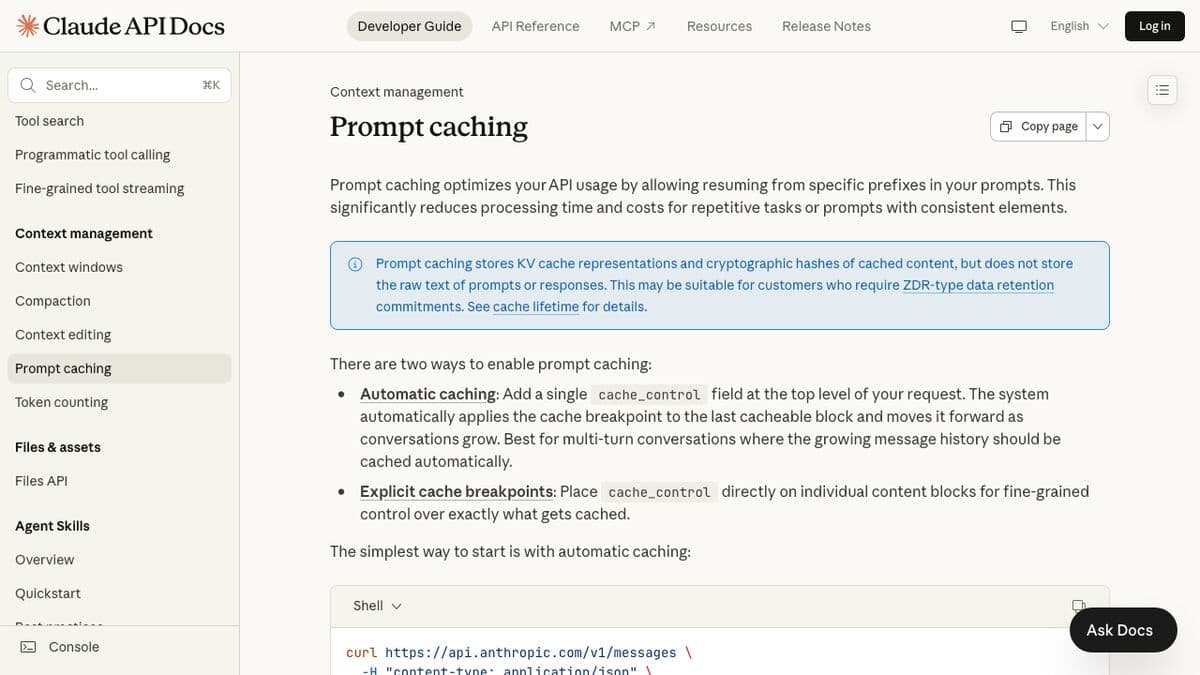
If you're building anything on the Claude API — a chatbot, an AI agent, a document processing pipeline — you're probably sending the same system prompt, the same tool definitions, and the same context on every single API call. And you're paying full price for it every time.
Prompt caching fixes that. It lets the API remember content you've already sent, so subsequent requests only process what's new. The result: up to 90% lower costs and 85% faster responses for long prompts.
We use prompt caching in our own AI chatbot and in client projects. This guide covers exactly how it works, what the common mistakes are, and how to set it up correctly.
What Is Prompt Caching?
Every time you call the Claude API, you send a prompt — system instructions, conversation history, tool definitions, documents, examples. The API processes all of that input before generating a response. For a chatbot with a long system prompt and 10 turns of conversation, that's a lot of repeated work.
Prompt caching stores the processed version of your prompt prefix (the KV cache representation) so Claude doesn't have to reprocess it from scratch on every call. When you send a request with caching enabled, the system checks if it's already seen this exact content. If it has, it skips the processing and reads from cache.
Two important things to know upfront:
- It doesn't store your actual text. The cache holds cryptographic hashes and KV representations, not your raw prompts. This matters for compliance and data retention policies.
- It doesn't change the output. Responses are identical whether the prompt was cached or not. Caching only affects cost and speed.
How It Works
The flow is straightforward:
- You send a request with caching enabled
- The system checks if a matching prompt prefix exists in cache
- If yes → it reads the cached prefix (fast and cheap), then processes only the new content
- If no → it processes the full prompt and writes it to cache for next time
The cache has a 5-minute TTL (time-to-live) by default. Every time the cached content gets used, the timer resets. So if your chatbot is getting messages every few minutes, the cache stays warm indefinitely. If nobody talks to it for 5 minutes, the cache expires and the next request pays the full write cost again.
There's also a 1-hour TTL option at 2x the base input token price. Worth it if your usage is bursty — say, a batch processing job that runs every 30 minutes.
The cache follows a strict hierarchy: tools → system → messages. Everything is prefix-matched, meaning content must be identical from the start. You can't cache the middle of a prompt.
The Two Caching Modes
Automatic Caching
The easiest way to start. Add one field to your request, and the system handles everything:
// Add cache_control at the top level of your request
{
  "model": "claude-sonnet-4-6",
  "max_tokens": 1024,
  "cache_control": { "type": "ephemeral" },
  "system": "Your system prompt here...",
  "messages": [
    { "role": "user", "content": "First message" },
    { "role": "assistant", "content": "First response" },
    { "role": "user", "content": "Second message" }
  ]
}
The system automatically caches everything up to the last cacheable block. As the conversation grows, the cache point moves forward. Previous content gets read from cache, and only the new turns get written.
Best for: multi-turn conversations, chatbots, any scenario where context grows over time.
Explicit Cache Breakpoints
For more control, you place cache_control markers on specific content blocks. This lets you cache different sections independently — useful when parts of your prompt change at different rates.
{
  "model": "claude-sonnet-4-6",
  "max_tokens": 1024,
  "system": [
    {
      "type": "text",
      "text": "You are a legal document assistant...",
      "cache_control": { "type": "ephemeral" }
    }
  ],
  "tools": [
    {
      "name": "search_documents",
      "description": "Search legal database",
      "input_schema": { ... },
      "cache_control": { "type": "ephemeral" }
    }
  ],
  "messages": [...]
}
You can set up to 4 cache breakpoints per request. The system checks for cache hits by working backwards from each breakpoint, checking up to 20 blocks before it.
Best for: complex prompts with stable tool definitions, long system prompts with dynamic message content, or any scenario where you need fine-grained cache control.
You can also combine both approaches — explicit breakpoints on your system prompt and tools, plus automatic caching on the conversation. Just remember that automatic caching uses one of your 4 available breakpoint slots.
Pricing Breakdown (With Real Math)
Here's the pricing structure. Cache writes cost 25% more than normal input. Cache reads cost 90% less. That's where the savings come from.
| Model | Base Input | Cache Write (5m) | Cache Read |
|---|---|---|---|
| Claude Opus 4.5/4.6 | $5/MTok | $6.25/MTok | $0.50/MTok |
| Claude Sonnet 4/4.5/4.6 | $3/MTok | $3.75/MTok | $0.30/MTok |
| Claude Haiku 4.5 | $1/MTok | $1.25/MTok | $0.10/MTok |
Let's run the numbers on a real scenario.
Scenario: AI chatbot with a 4,000-token system prompt, handling 50 conversations/day with an average of 8 turns each.
Without caching, every turn sends the full system prompt. That's 4,000 tokens × 8 turns × 50 conversations = 1.6M input tokens/day just for the system prompt. On Sonnet 4.6, that's $4.80/day or about $144/month — just for the system prompt alone.
With caching, the system prompt gets written to cache once per conversation (50 writes/day = 200K tokens at $3.75/MTok = $0.75) and read from cache for the other 7 turns (350 reads/day = 1.4M tokens at $0.30/MTok = $0.42). Total: $1.17/day or about $35/month.
That's a 76% cost reduction on just the system prompt. Factor in conversation history that also gets cached, and savings climb higher with longer conversations.
What Breaks the Cache
This is where most people waste money. The cache requires exact prefix matches. Any change to cached content invalidates everything downstream. Here's the full breakdown:
| Change | Tools Cache | System Cache | Messages Cache |
|---|---|---|---|
| Modify tool definitions | Invalidated | Invalidated | Invalidated |
| Toggle web search | OK | Invalidated | Invalidated |
| Toggle citations | OK | Invalidated | Invalidated |
| Change speed setting | OK | Invalidated | Invalidated |
| Change tool_choice | OK | OK | Invalidated |
| Add/remove images | OK | OK | Invalidated |
| Change thinking settings | OK | OK | Invalidated |
The most common mistakes we see:
- Timestamps in system prompts. If your system prompt includes
The current date is February 28, 2026, that changes every day. The entire cache invalidates at midnight. Move dynamic content to the user message instead. - Randomized JSON key ordering. Some languages (Go, Swift) randomize object key order during JSON serialization. If your tool definitions serialize differently each time, the cache never hits. Pin your key ordering.
- Adding/removing tools between calls. Tool definitions sit at the top of the cache hierarchy. Changing them invalidates everything. Define your full tool set once and keep it consistent.
- Not meeting the minimum token threshold. System prompts under the minimum simply won't cache, and you'll never see it in the response — the API just quietly skips caching. Check
cache_creation_input_tokensin the response to verify.
Best Practices by Use Case
Chatbots and Conversational Agents
Use automatic caching. It handles the growing conversation history for you. Structure your prompt so the system instructions and tool definitions come first (they're the most stable), then conversation messages.
- Keep your system prompt consistent across all conversations
- Move dynamic data (user name, date, session ID) into the first user message, not the system prompt
- If conversations pause for more than 5 minutes, expect one cache write on the next message
Document Processing
Embed the full document in your prompt and cache it. Users can then ask multiple questions about the same document without reprocessing it each time.
- Use explicit breakpoints — cache the document separately from the questions
- For large documents that push past 100K tokens, consider the 1-hour TTL if processing takes time
- Anthropic's own benchmarks show a 100K-token cached document going from 11.5s to 2.4s latency
Agentic Tool Use
AI agents make many sequential API calls — each step requires the full context plus new tool results. Caching is critical here because each tool call iteration would otherwise resend everything.
- Cache your tool definitions with an explicit breakpoint (they almost never change mid-session)
- Use automatic caching for the growing conversation
- Be careful with extended thinking — non-tool-result user messages strip all previous thinking blocks from cache
Many-Shot Prompting
If you're including 20+ examples in your prompt to improve quality, caching pays for itself immediately. Those examples are identical across calls — they should only be processed once.
- Put all examples in the system prompt with a cache breakpoint after them
- Anthropic reports 86% cost savings on a 10K-token many-shot prompt
Getting Started
Here's the fastest path to saving money with prompt caching:
Step 1: Add One Line of Code
If you're building a chatbot or anything with multi-turn conversations, just add cache_control at the top level:
# Python
response = client.messages.create(
    model="claude-sonnet-4-6",
    max_tokens=1024,
    cache_control={"type": "ephemeral"},
    system="Your system prompt...",
    messages=conversation_history
)

# TypeScript
const response = await client.messages.create({
  model: "claude-sonnet-4-6",
  max_tokens: 1024,
  cache_control: { type: "ephemeral" },
  system: "Your system prompt...",
  messages: conversationHistory,
});
Step 2: Check the Response
Every response includes cache metrics in the usage object:
{
  "usage": {
    "input_tokens": 50,
    "cache_creation_input_tokens": 4000,
    "cache_read_input_tokens": 0,
    "output_tokens": 200
  }
}
On the first call, you'll see cache_creation_input_tokens (tokens written to cache). On subsequent calls, you should see cache_read_input_tokens instead. If you're always seeing cache writes and never reads, something is breaking your cache — check the table above.
Step 3: Monitor and Optimize
Track your cache hit rate over time. A healthy implementation should see 80-95% cache reads after the first request in each conversation. If you're below that:
- Check if your system prompt has dynamic content that changes between calls
- Verify your tool definitions are stable and consistently ordered
- Make sure your prompt meets the minimum token threshold for the model you're using
- Confirm requests are happening within the 5-minute TTL window
Minimum Token Requirements
Caching only kicks in above these thresholds:
| Model | Minimum Tokens |
|---|---|
| Claude Opus 4.5 / 4.6 | 4,096 |
| Claude Sonnet 4.6 | 2,048 |
| Claude Sonnet 4 / 4.5 | 1,024 |
| Claude Haiku 4.5 | 4,096 |
If your system prompt is under 1,024 tokens, it won't cache regardless of settings. Pad it with examples or additional context if needed — the caching savings will more than offset the extra input tokens.
Bottom Line
Prompt caching is one of the highest-ROI optimizations you can make on the Claude API. One line of code, no behavior changes, immediate cost savings. If you're spending more than $50/month on Claude API calls and you're not using caching, you're leaving money on the table.
For the full technical reference, see Anthropic's official prompt caching docs.
Need help implementing prompt caching or optimizing your Claude API integration? Reach out — this is exactly the kind of thing we do for clients.

Elevated AI Consulting
Sam Irizarry is the founder of Elevated AI Consulting, helping businesses grow through strategic marketing and AI-powered solutions. With 12+ years of experience, Sam specializes in local SEO, web design, AI integration, and marketing strategy.
Learn more about us →